Upcoming FleetAI Training
Join us at one of our upcoming training sessions online during April and May 2026.
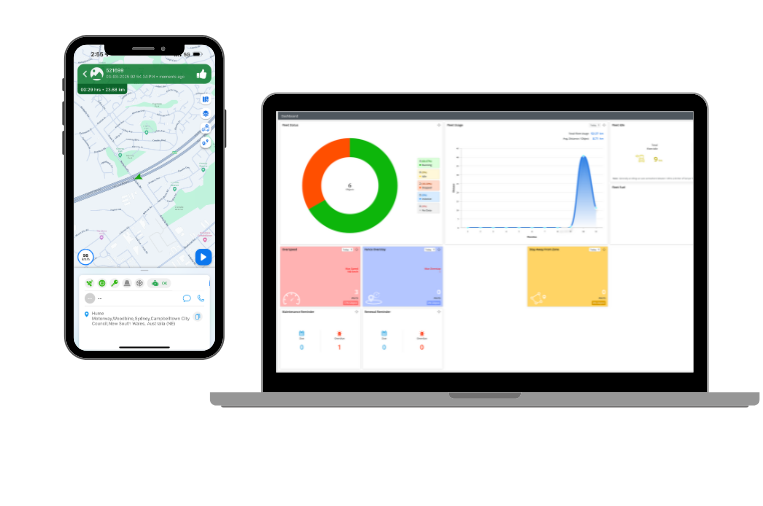


Join us at one of our upcoming training sessions online during April and May 2026.
In this video, we’ll guide you through the FleetAI login process and provide a step-by-step overview of the dashboard navigation. Learn how to access your account, explore key dashboard features, and get familiar with the tools that will help you manage your fleet more efficiently.
Topics Covered:
In this video, we’re diving into the Object Status Window and its Widgets, two essential tools for managing your fleet operations effectively. You’ll discover how to interpret real-time data and customize your dashboard to prioritize the insights that matter most to you.
Topics Covered:
In this video, we explore Object and Vehicle Tracking, Navigation, and the System Maps. Get ready to master the tools you need to monitor and manage your fleet with precision. We’ll also cover the Tool Tip Window and Widgets, which provide valuable insights to enhance your operational efficiency.
Topics Covered:
In this video, we’ll walk you through the steps to access and generate Trip Replays within FleetAI. Trip Replays provide a detailed visual overview of vehicle journeys, helping you review routes, analyze driving behavior, and optimize fleet performance.
Topics Covered:
In this video, we’ll show you how to create and manage Geofences in FleetAI. Geofences are virtual boundaries that enable you to monitor vehicle activity in specific areas, helping you streamline operations, enhance security, and improve compliance.
Topics Covered:
In this video, we’ll guide you through the process of generating reports in FleetAI. Reports are a crucial tool for gaining insights into your fleet’s performance, identifying trends, and making data-driven decisions to optimize operations.
Topics Covered:
In this video, we will be covering how to create Create Object Groups. They allow users to organise objects into groups based on their type or any other criterial they would like to define as per their preferences and requirements. Object Groups help users efficiently manage and monitor their assets by offering a unified perceptive of their current status.
Topics Covered:
In this video, we’re covering how to create Drivers. The software will provide insights to a into trip data, driving habits and safety compliance by identifying unsafe practices.
Topics Covered:
In this video, we explore how to create Sub Users. Sub User logins are created to grant additional controllers access to monitor and track the company vehicles using their own username and password. Having the logins also makes for a clear audit trail, keeping track of which user logged and when the user logged in.
Topics Covered:
In this video, we’ll walk you through how to utilise the Routes Optimisation feature. Route Optimisation is the process of determining the most effective route for a vehicle and ensuring that selected vehicles are utilised effectively for assigned jobs.
Topics Covered:
In this video, we’ll show you how to create Job modules. This function is designed to streamline task’s that you would like to assign to drivers.
Topics Covered:
In this video, we’ll guide you through the process of creating set Alerts and Set Reminders. Alerts can be set up to alert fleet managers or designated responsible persons to encourage prompt action on potential issues and ensuring driver compliance.
Topics Covered:
View our quick start guide with all the essential steps to get you started in Fleet AI
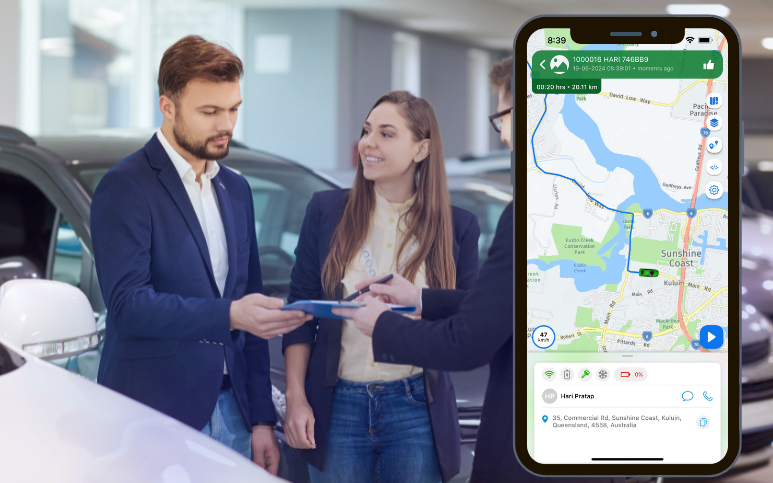
All you need is your phone! Install the Netstar FleetAI app for iOS or Andriod and manage your fleet on the go.
Download the apps now: